





























Complete Setup Guide for Your Yealink W80b System
The Yealink W80b is a multi-cell DECT base station designed for seamless and scalable wireless telephony.

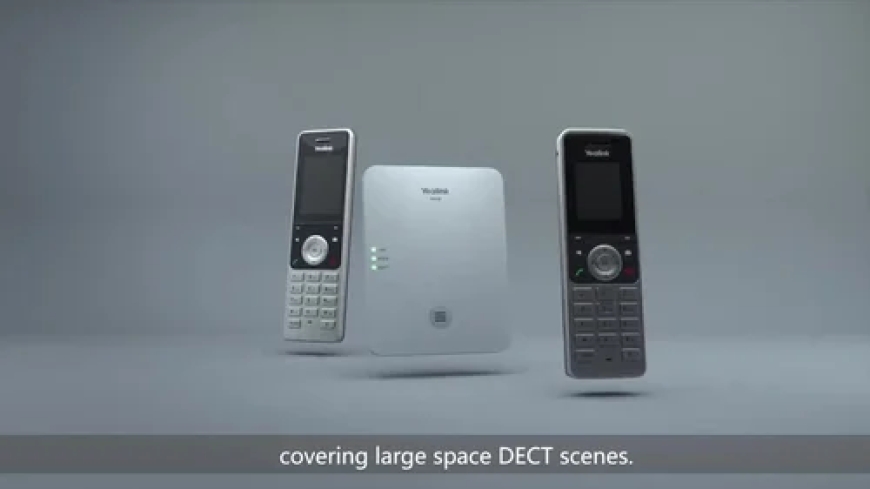
The Yealink W80b is a multi-cell DECT base station designed for seamless and scalable wireless telephony. Ideal for businesses that need reliable communication across large spaces, this system supports handover and roaming features for uninterrupted calls.
Whether you're managing a warehouse, hotel, hospital, or campus environment, the Yealink W80b brings enterprise-level communication to your fingertipsespecially when purchased from the Affordable Electronics Store, your trusted source for genuine telecom gear.
Whats in the Box?
When you buy a Yealink W80b system, ensure the following items are included:
-
1x Yealink W80b Base Station
-
Power adapter or PoE capability
-
Wall-mount kit
-
Ethernet cable
-
Quick start guide/manual
Always double-check your box before starting installation.
Key Features of Yealink W80b
|
Feature |
Description |
|
Multi-Cell DECT |
Supports roaming & handover across multiple base units |
|
Scalable Architecture |
Connects up to 30 base stations and 100 handsets |
|
Wide Coverage |
50m indoors, 300m outdoors (per base station) |
|
SIP Support |
Compatible with major VoIP providers and PBX systems |
|
Centralized Management |
Streamlined administration through a web interface |
|
Energy Efficient |
Eco mode and low radiation design |
With these features, the Yealink W80b is a powerful tool for modern communication environments.
Prerequisites for Installation
Before diving into the setup process, make sure you have:
-
A stable internet connection
-
PoE switch or power adapter
-
Ethernet cable
-
Compatible SIP provider or PBX system
-
At least one Yealink W56H, W73H, or similar DECT handset
-
Administrative access to your local network
Step-by-Step Setup Guide
Physical Installation
-
Choose a central and elevated location.
-
Mount the base station using the included wall-mount bracket.
-
Plug in the Ethernet cable (POE or with adapter).
-
Wait for the power LED to light up.
Connecting to the Network
-
Plug the Ethernet cable into a DHCP-enabled switch/router.
-
The base will receive an IP address automatically.
-
You can check your router's admin panel to see the assigned IP.
Accessing the Web Interface
-
Open a browser and enter the IP address.
-
Login with default credentials:
-
Username: admin
-
Password: admin
Change the default password after first login.
Why Buy from Affordable Electronics Store
When you purchase from Affordable Electronics Store, you're getting:
-
100% authentic Yealink products
-
Competitive pricing and discounts
-
Fast, insured shipping
-
Knowledgeable customer service
-
Warranty and return support
Whether you're upgrading a small office or outfitting a large warehouse, Affordable Electronics Store offers you value and peace of mind.
Registering Handsets with Yealink W80b
-
Put the base into registration mode via the web interface.
-
On the handset, go to Menu > Settings > Registration.
-
Select Register Handset and enter the PIN (default: 0000).
-
Wait for confirmation on both devices.
You can repeat this for multiple handsetsup to 100 devices in a single network.
Network Configuration Settings
In the Network > Basic settings, configure:
-
Static IP (optional): Ensures a fixed address
-
VLANs: For isolating voice traffic
-
QoS Settings: Prioritize voice packets
This ensures high-quality, low-latency calls even during peak traffic.
Integrating with PBX Systems
-
Go to Account > Register in the web interface.
-
Input your SIP server, username, and password.
-
Click Confirm and wait for the status to show Registered.
You can connect the W80b with 3CX, FreePBX, Asterisk, or any cloud-based provider like RingCentral.
Firmware Updates
To keep your system running smoothly:
-
Download the latest firmware from Yealink Support.
-
In the web interface, go to Settings > Upgrade.
-
Upload the .rom file and click Start.
Always back up your settings before updating.
Best Practices for Optimal Performance
-
Install base units 3050 meters apart
-
Avoid walls and metal structures blocking signal
-
Use a dedicated VLAN for voice traffic
-
Regularly update firmware
-
Reboot the base unit monthly
Troubleshooting Common Issues
|
Problem |
Solution |
|
Handset wont register |
Check DECT settings, ensure base is in reg. mode |
|
No dial tone |
Verify SIP account, check network connection |
|
Poor audio quality |
Review QoS settings, check for network jitter/latency |
|
Can't access web interface |
Use correct IP, try factory reset if needed |
Conclusion
Setting up the Yealink W80b doesn't have to be overwhelming. With a bit of planning and the right guidance, you can have a fully functional, enterprise-grade communication system in no time. The system is scalable, dependable, and perfect for growing businessesespecially when sourced from the Affordable Electronics Store.
FAQ: Yealink W80b
1. Can I use the W80b without a PBX system?
No, it requires integration with a SIP provider or PBX for full functionality.
2. How many handsets can I connect?
Up to 100 handsets and 30 base stations in a multicell system.
3. Does the W80b support PoE?
Yes, it fully supports Power over Ethernet (802.3af).
4. Can I use non-Yealink handsets?
No, only compatible Yealink DECT handsets will work.
5. Whats the coverage area per base station?
Approximately 50m indoors and up to 300m outdoors.
6. Is the Yealink W80b suitable for home use?
While possible, it's best suited for business or large facilities.